
Your iPhone has features that can make the difference between getting help or not in a crisis situation. Apple has developed various safety features in recent years that are specifically designed to protect users when it matters most. These tools are already in your device – you just need to know where to find them and how to activate them.
I notice that many people have no idea of the possibilities their smartphone offers in terms of personal safety. Whilst we use apps daily for social media and entertainment, essential safety features often remain unused. That’s a shame, because your iPhone can literally save your life.
The integration of these features into the iOS system ensures they work reliably, even when you’re under stress or in a panic. Apple has deliberately chosen simple activation methods that remain achievable even in extreme situations.
Emergency SOS: your digital lifeline
The power of the five-click method
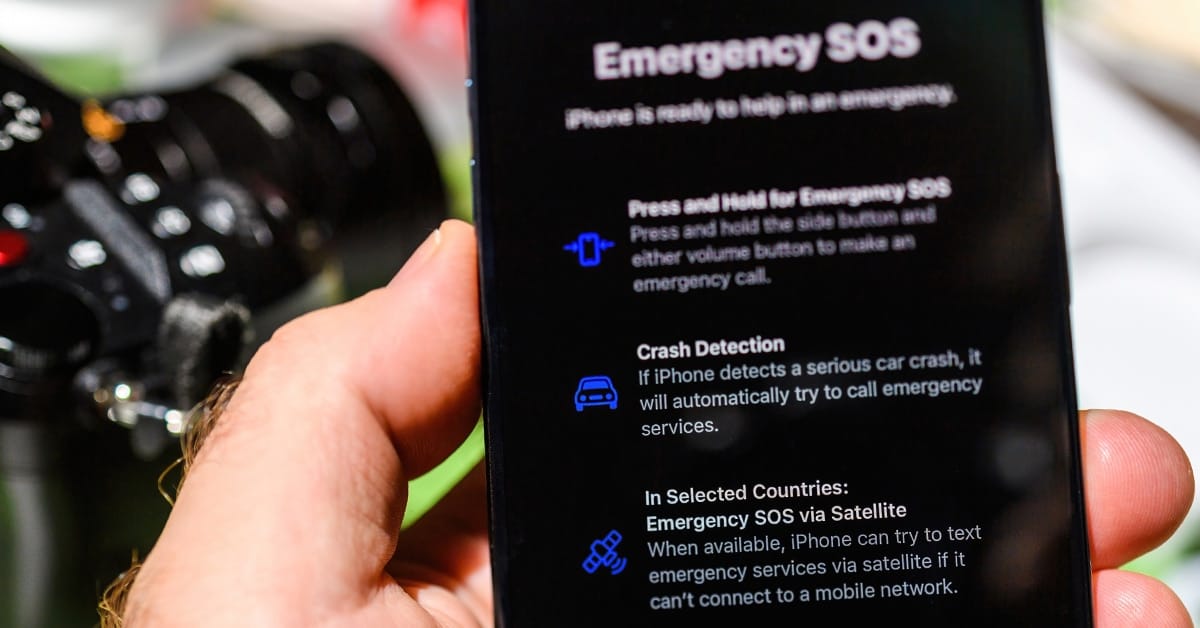
The Emergency SOS function activates when you press the power button five times in quick succession. Afterwards, you can let the SOS emergency slider appear, after which you drag the slider to the right to call the emergency number. This action automatically calls the local emergency services – in Belgium and the Netherlands that’s the number 112. The system works even if your screen is locked, which can be crucial when you need to act quickly.
- You can also enable the ‘Call with 5 presses’ or ‘Call with hold’ option in the settings to automatically start an emergency call, or in exceptional situations via satellite contact emergency services if no mobile signal is available.
After placing the emergency call, your iPhone automatically sends a message to your emergency contacts with your exact location. This location is updated every hour as long as the emergency situation is active, which helps rescue services find you, even if you change position.
Countdown and silent alarm
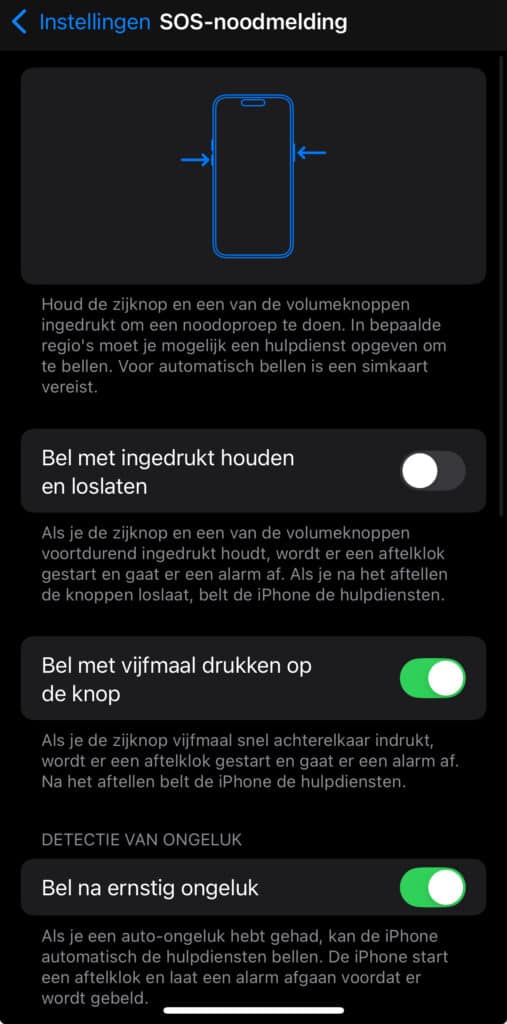
You can set whether the feature plays a countdown sound before it calls the emergency services. This gives you three seconds to cancel the call if you’ve accidentally activated the feature. For situations where silence is essential, you can disable this countdown.
The system also automatically disables your Face ID and Touch ID after activation, which prevents someone else from accessing your personal data whilst emergency services are on their way.
Share location: stay findable at all times
Find My network as a safety net
Apple’s Find My network forms an invisible safety net that extends far beyond just finding lost devices. When your iPhone goes offline, it remains detectable to other Apple devices nearby. These devices anonymously forward your location to Apple’s servers, keeping your device findable.
This feature works even if your iPhone is switched off or the battery is flat. Apple has built in a reserve power function that keeps crucial chips active for sharing location data.
Share location with trusted contacts
Via the Messages app, you can share your location in real-time with specific contacts. This feature remains active even if you lose your iPhone or if something happens to you. Family or friends can then see exactly where you were last.
You can choose temporary sharing (one hour, until the end of the day) or permanent sharing. For people who regularly undertake solo activities such as hiking or camping, this offers an extra layer of safety.
📍Share location? Discover here how to do that smartly and safely!
Medical ID: life-saving information within reach
Making critical medical data accessible
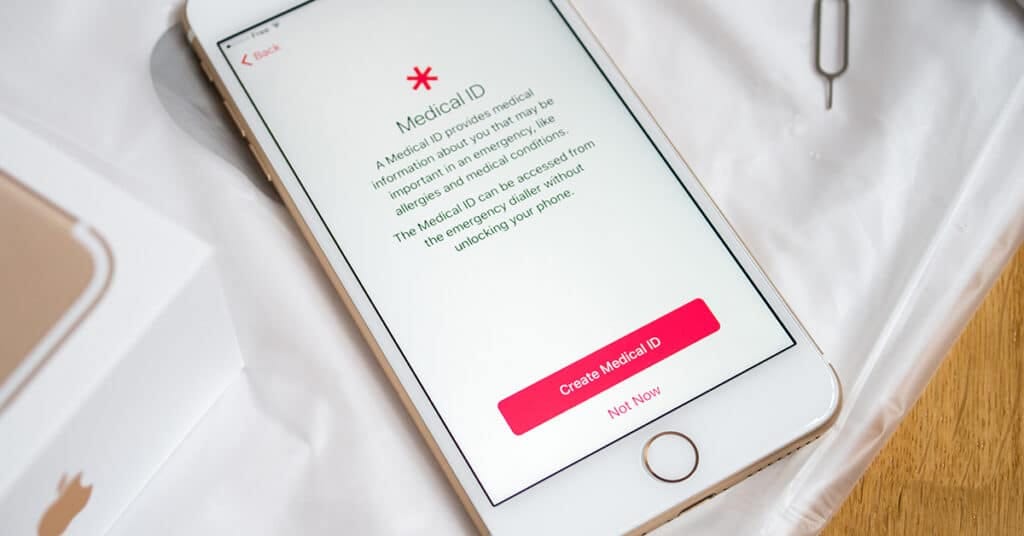
Your Medical ID contains information that emergency responders need: blood type, allergies, medication, medical conditions and emergency contacts. This data is accessible from the lock screen without anyone needing to know your password.
Ambulance personnel and doctors now know they can look at an iPhone’s Emergency screen for medical information. This knowledge can be life-saving in accidents where you’re no longer conscious.
Setting up your Medical ID optimally
Fill in all relevant fields, but be selective. Too much information can become confusing in an emergency situation. Focus on acute medical problems, serious allergies and medication that needs to be stopped or adjusted during unconsciousness. Update your Medical ID regularly, especially after changes in medication or new diagnoses!
Crash Detection: automatic assistance in accidents
How your iPhone recognises accidents
Modern iPhones have Crash Detection, a feature that can automatically detect a serious car accident, motorcycle accident or severe fall. The system combines data from the accelerometer, gyroscope, microphone and barometer to recognise crash patterns.
When a crash is detected, your iPhone displays a warning and begins a 20-second countdown. If you don’t respond, the device automatically calls 112 and sends your location to emergency services and emergency contacts.
Limitations and possibilities
The feature works best with serious accidents involving sudden deceleration or impact. Minor collisions or falls may not always be recognised. The system does learn from false alarms and becomes more accurate as more users use the feature.
For people who regularly drive or cycle in remote areas, this automatic detection can make the difference between getting help quickly or remaining unfindable for hours.
Privacy and security with safety features
Balance between safety and privacy
Apple has designed these safety features with privacy in mind. Location data for Emergency SOS is only shared during active emergency situations and is not permanently stored for commercial purposes.
The Find My network works with end-to-end encryption, which means that even Apple cannot see where your device is located. Only you and the people you explicitly grant access can view this information.
Control over your data
You retain full control over what information you share and with whom. All safety features can be individually switched on or off via the Settings app. You can also specifically set which contacts have access to your location information.
Practical tips for optimal use
Regular checks and updates
Check your emergency contacts and Medical ID monthly. Telephone numbers change, people move house, and medical situations develop. Outdated contact details can be fatal in a real emergency situation.
Test the Emergency SOS function periodically (but cancel the call before it goes through). This way you know for certain that you’ve mastered the right action and that the function works correctly.
Inform those around you
Tell family and friends about these features. If they know that your iPhone can automatically share your location in an emergency, they can respond more quickly and effectively. Explain how they can access your Medical ID from the lock screen.
Consider helping others set up their safety features as well. A safer community begins with individual preparation.
Conclusion
Your iPhone contains powerful safety features that can make the difference between an unpleasant situation and a real crisis. By setting up these tools correctly and checking them regularly, you create a digital safety net for yourself and your loved ones. It takes only a few minutes to set everything up, but the potential impact is immeasurably great. Technology only becomes valuable when it helps us in the moments that truly matter.